








VICIdial firewall: allow your office IP and block an address
Use the VICIdial firewall screen in the Trustane console to see who is signed in, allow an office IP, block an address and read failed sign-ins.

To the point
The VICIdial firewall on a Trustane server is managed from one screen, Firewall:
- Read who is signed in, and from which address.
- Press Add IP to allow an office address, so it skips the sign-in page.
- Choose Block to shut an address out.
- Open Failed sign-ins and block an address from its line.
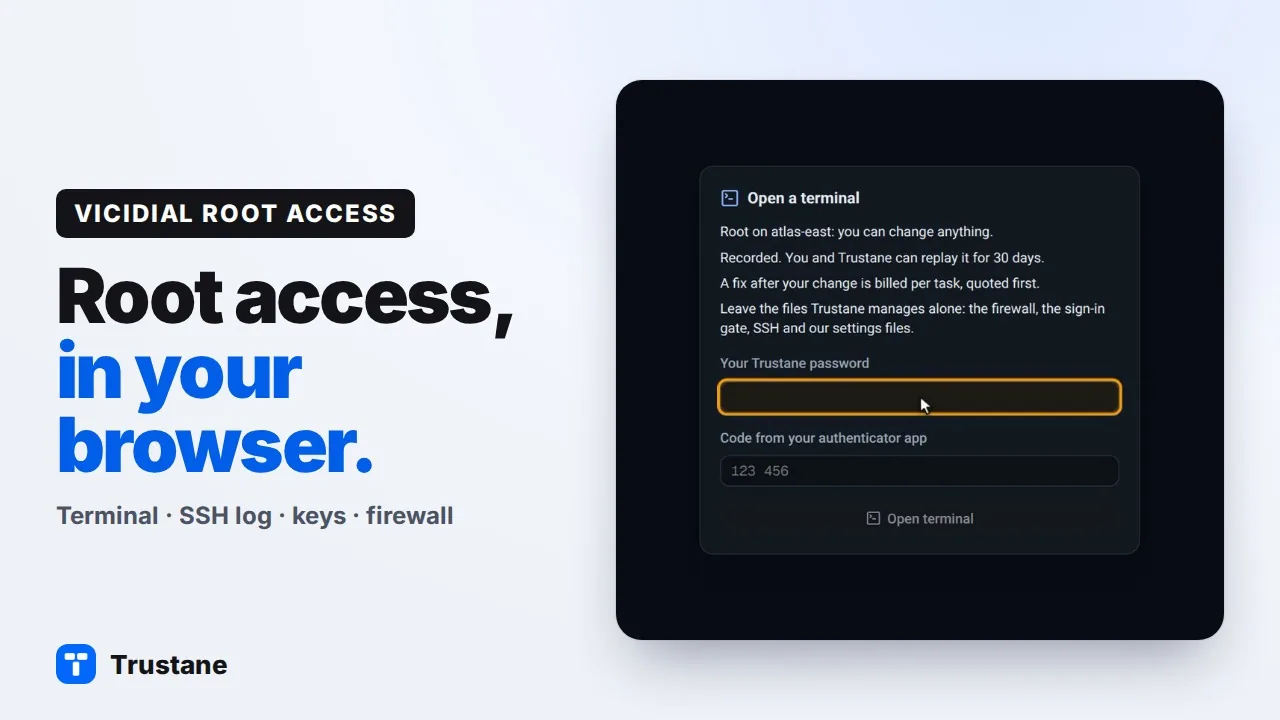
Plays from YouTube when you press Play. Google's privacy policy applies.
These screens are from our demo account, so every name and address shown is invented.
How people reach the server
With the firewall on, the server's web and SIP ports are closed to the internet. An agent or an admin first opens the server's sign-in page and signs in with their VICIdial user. The server then lets that address in for 24 hours.
The Firewall screen shows the result as five counts.

- Signed in now: addresses that came through the sign-in page.
- Allowed: addresses that reach the server without signing in.
- Blocked: addresses that cannot open the sign-in page.
- Failed sign-ins, 24 h: wrong passwords and refused attempts.
- Carrier addresses: your carriers' addresses, let through for calls. This list is shown and cannot be edited here.
1. See who is signed in
The first tab lists each signed-in address with the person, whether they opened the admin screens or the agent screen, when they signed in and how much time is left.
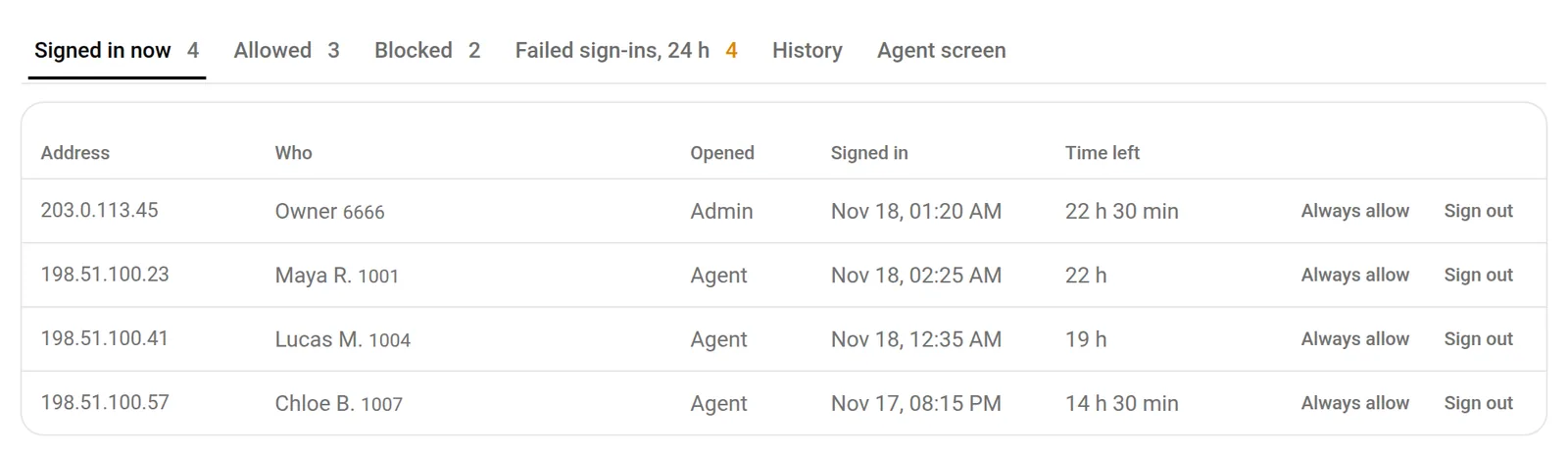
Each line has two actions:
- Always allow adds the address to the Allowed list.
- Sign out takes the address off the signed-in list. The person signs in again to come back.
2. Allow your office address
An office with a fixed address does not need the sign-in page every day.
- Press Add IP.
- Keep Allow selected.
- Type the address, or a range such as
203.0.113.0/24. - Give it a label, such as the office name.
- Choose how long it lasts: permanent, 24 hours, 7 days, 30 days, or until a date.
- Press Allow.
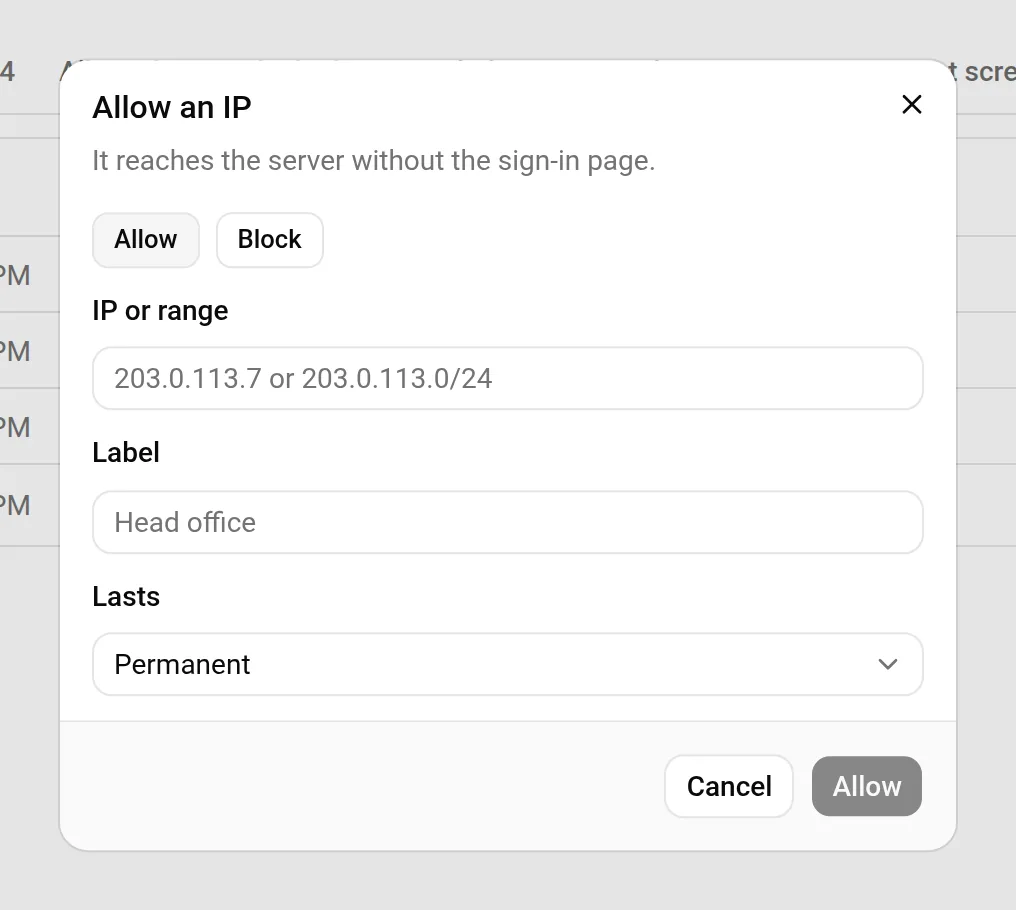
Everyone behind that address then reaches the server without signing in at the sign-in page. Allow only addresses you control.
The Allowed tab lists each entry with its label, how long it lasts, who added it and when. An entry with an end date leaves the list by itself when its time is up, and Remove takes one off at once.
3. Block an address
Press Add IP and choose Block. The form is the same: address or range, label and how long.
On the server, the Blocked list is checked before the Allowed list and before the sign-ins. A blocked address cannot open the sign-in page, and an address that was signed in is cut off.
Three kinds of address stay reachable whatever you block: Trustane's own management address, the other servers of your cluster, and your carriers' addresses for calls. That way a block cannot cut the server off from its calls or from the console.
To undo a block, open the Blocked tab and press Remove on its line.
4. Block from the failed sign-ins
The Failed sign-ins, 24 h tab lists each failed attempt at the sign-in page: the time, the address, the user name that was tried and the result. Results include a wrong password, too many tries and a user level that is not allowed in.
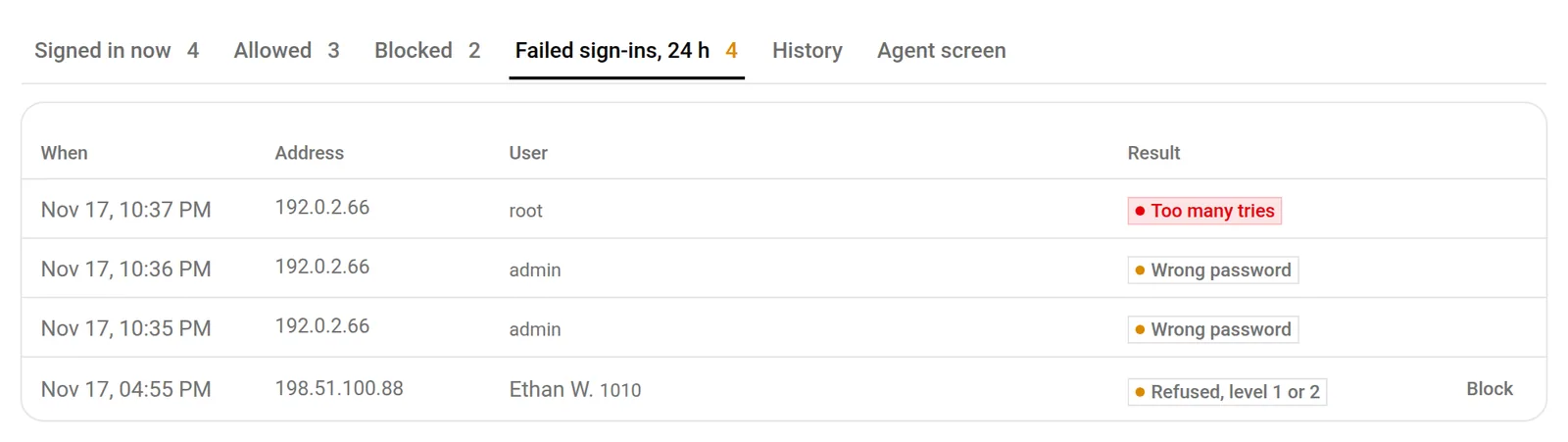
A line whose address is not blocked yet has a Block button.
The History tab keeps the sign-in attempts the server has, newest first, and the chart above the tabs shows signed-in and failed attempts for the last 7 days. Press Show as a table under the chart to read the same figures as numbers.
Blocking from the SSH side
SSH has its own lists on the Terminal page. A sign-in over SSH from an unknown address can be blocked from there, and the block lands on the same Blocked list. The terminal guide shows where.
Next steps
- Open your server's terminal in the browser.
- Securing a VICIdial server: what a default-deny firewall protects.
- Order a server. A new server costs nothing for its first 7 days.
VICIdial is a trademark of its owner. Trustane is an independent hosting provider.
Sources
- The Firewall screen, its lists and its Add IP form
- What each list means on the server
- The order of the firewall rules on the server
- The checks on that order
Managed VICIdial hosting