








A VICIdial wallboard your floor can read
Put a VICIdial floor on a TV with Trustane's wallboard. Six figures stay on screen, the screens under them turn every 20 seconds, and a touch holds it.

To the point
Every Trustane server has its own wallboard: open the server's Floor and press Wallboard. Six figures stay on screen, and the screens under them turn every 20 seconds. Touch it and it stays where you put it; two minutes after the last touch, it starts turning again.
- The six figures: On call, Ready, Waiting, Paused, Missed (or Drops out) and Calls today.
- The screens: People, Campaigns, Queues and Today, plus Lines when the server has lines or carriers to show.
- Keys: the arrows change screen, Space holds, F goes full screen, Esc leaves.
- Each screen can stay 10, 20, 30 or 60 seconds, saved in the browser that shows it.
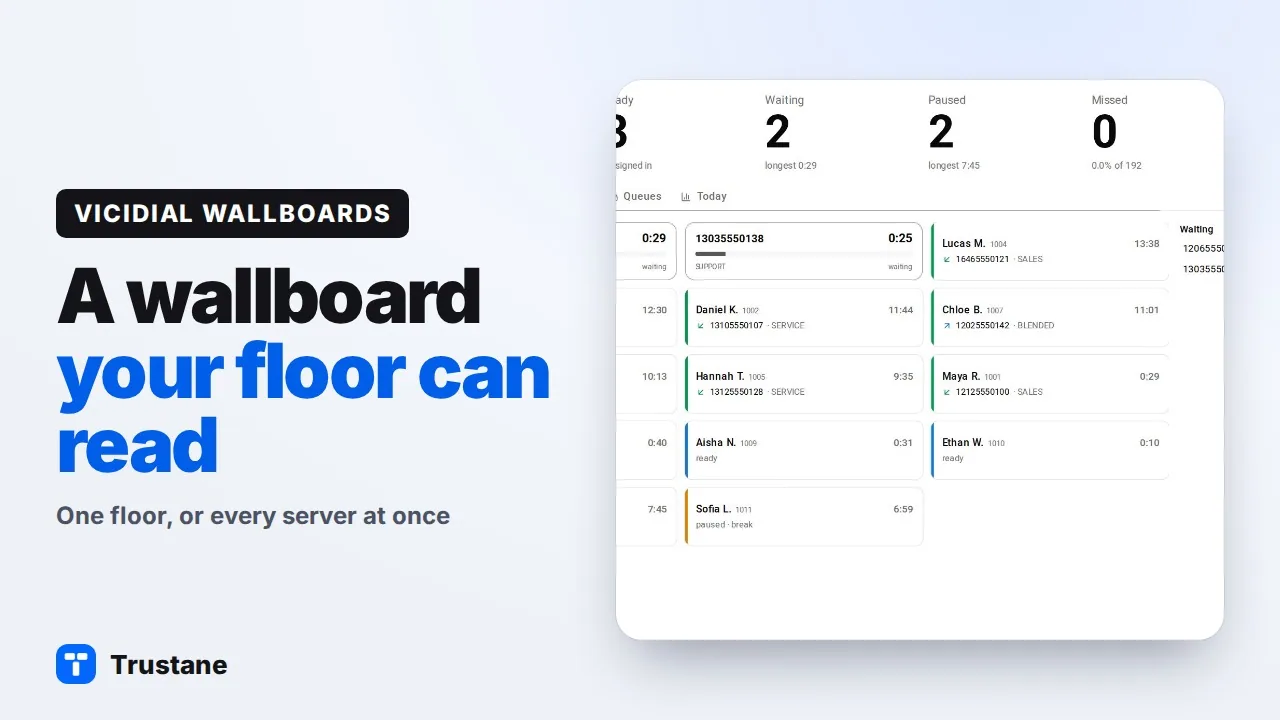
Plays from YouTube when you press Play. Google's privacy policy applies.
The wall is the one console page with nothing around it: no sidebar, no breadcrumb, no header bar. It is meant for a TV in the room. The pictures below come from a demo account, so every agent, number and server name in them is made up.
Before you start
- A running server. A server that is not running yet shows "The wallboard fills in by itself once the server is up."
- A browser signed in to the console. The wall is a signed-in page. A browser that is signed out lands on the sign-in page instead.
Open the wallboard
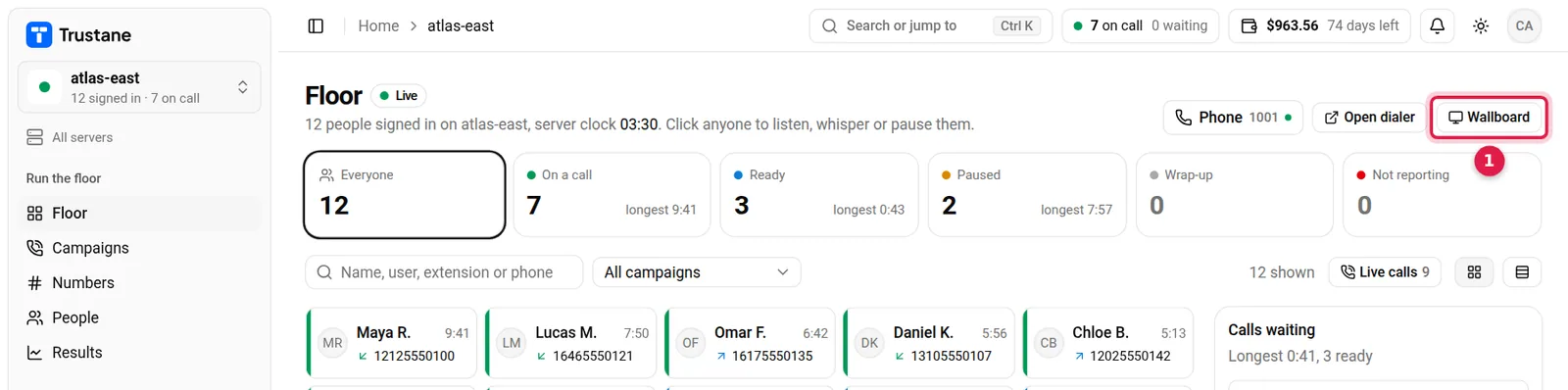
- Wallboard: in the Floor's title row. It opens this server's wall.
The same wall is on the Servers page too: open a server's menu and choose Wallboard.
Read the six figures

- On call: people on a call, with how many calls are in and how many are out under it.
- Ready: people free for the next call, and how many are signed in.
- Waiting: callers waiting for an agent, with the longest wait. The number turns amber once that wait reaches one minute.
- Paused: people on a pause, with the longest pause.
- Missed: today's missed inbound calls, and their share of the calls that came in.
- Calls today: calls in, calls out, and sales.
- The clock: the time on the server, labelled "on the server's clock".
The first four figures are also buttons. Press Paused and the People screen narrows to the paused people; press it again and everyone is back. A seventh figure appears only when it is needed: Not reporting, with "the server can’t see them" under it.
Watch the screens turn
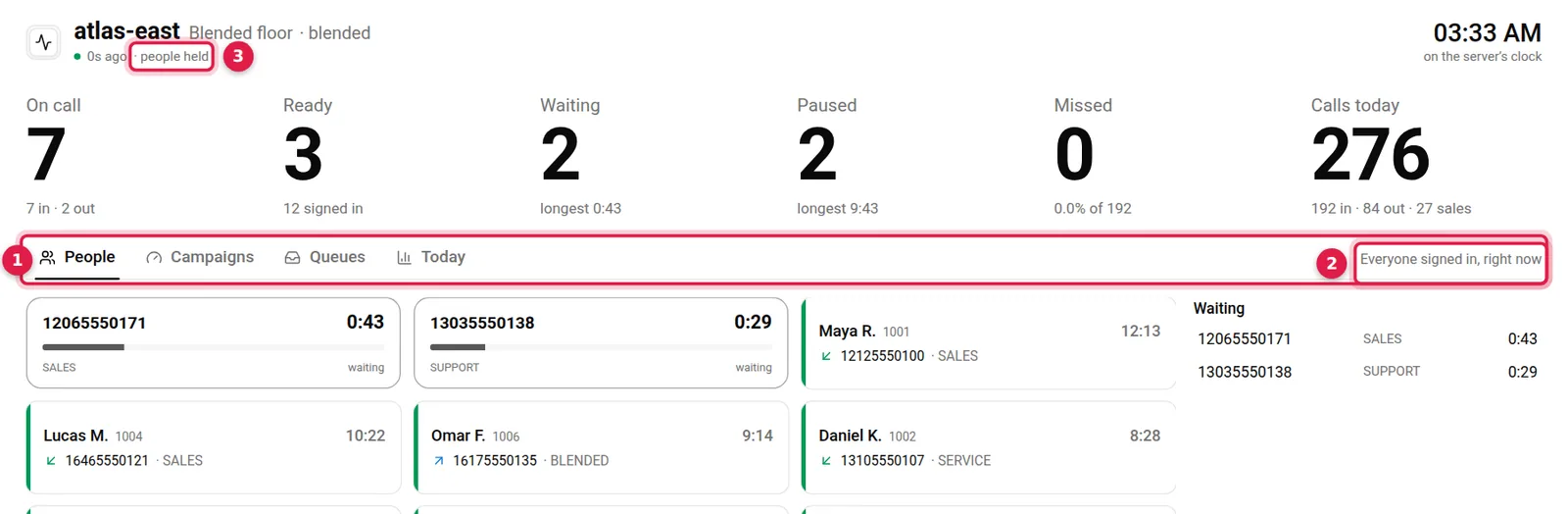
- The tabs: one per screen. The one showing is underlined, and pressing another goes straight to it.
- The screen's own line: what this screen shows, in a few words.
- people held: the wall has been touched and is staying on People.
Each screen says what it is:
| Screen | Its line on the wall |
|---|---|
| People | Everyone signed in, right now |
| Campaigns | Today’s dialing, per campaign |
| Queues | Callers waiting and today’s calls, per queue |
| Today | Since midnight, on the server’s clock |
| Lines | The server’s lines and carriers |
A screen with nothing on it stays off the wall. Campaigns needs a campaign, Queues needs a queue, and Lines needs the dialer to have leads, lines or carriers to show.
Left alone, the wall moves to the next screen every 20 seconds, and a thin line under the tabs fills as the time runs out. Campaigns and Queues are shown in pages, never scrolled, and their screen stays until each page has had its turn. When there are more people than fit, the People screen glides sideways instead (unless the gear says Scroll by hand), and stays long enough for one glide there and back.
Hold it, and let it go
- Touch or click the board. The wall stays on that screen, and the line under the server's name adds which screen is held.
- Wait two minutes. Two minutes after the last touch, it clears anything you narrowed and starts turning again.
- Press Space, or the hold button, to hold it for good. It stays until you press it again.
While a menu or a dialog is open, nothing moves at all: not the screens, and not the pages under them.
Use the keys and the corner controls
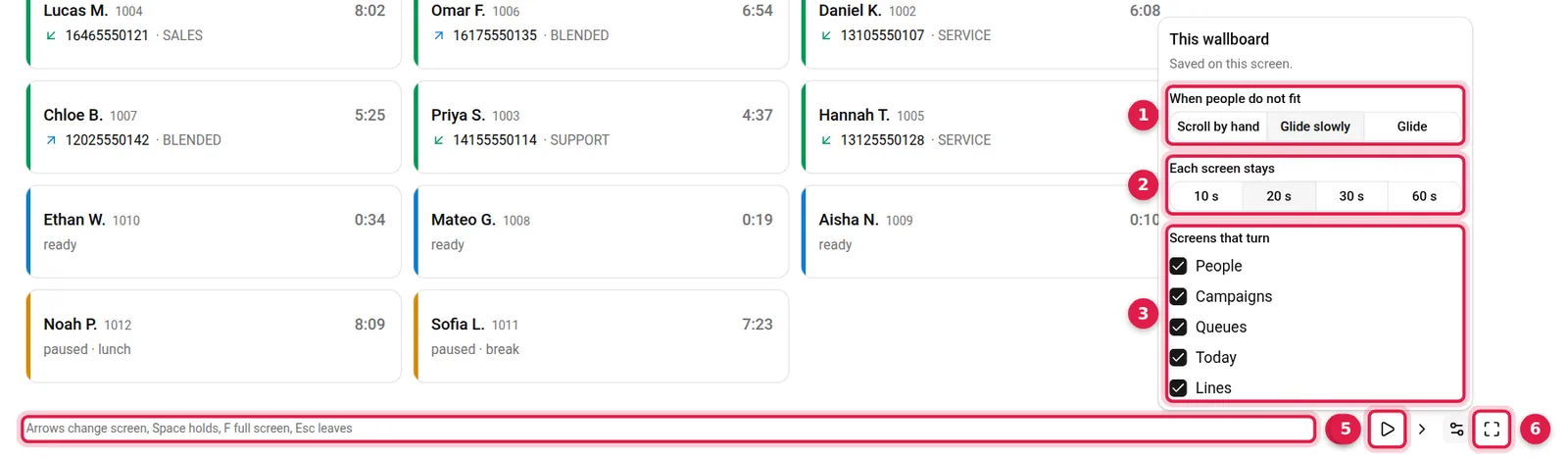
- When people do not fit: Scroll by hand, Glide slowly or Glide.
- Each screen stays: 10 s, 20 s, 30 s or 60 s.
- Screens that turn: untick a screen to leave it out. The last ticked screen cannot be unticked.
- The keys, written on the wall itself: "Arrows change screen, Space holds, F full screen, Esc leaves".
- Hold: stops the turning. While the wall is held it shows a play symbol, and pressing it resumes.
- Full screen: the same as pressing F.
The gear between them opens these settings, and its panel says "Saved on this screen." They live in the browser that shows the wall, so the TV and your desk can each keep their own. An arrow key steps one screen and holds it there, like a touch. Esc, or the cross in the corner, takes you back to the server's Floor.
Put it on a TV
- On the computer that drives the TV, open a browser and sign in to the console.
- Open the server's Floor and press Wallboard.
- Press F for full screen.
- Open the gear and set Each screen stays and Screens that turn for that room.
The labels and figures are sized from the screen itself, so a bigger TV gets bigger numbers. The line under the server's name says how old the reading is: "0s ago", then minutes. From five minutes it reads "last read 5m ago" in amber, so a wall that has stopped updating says so.
What VICIdial offers for a TV
VICIdial's real-time report refreshes every 40 seconds by default, and Choose Report Display Options changes that (manager manual 2.14-960a, page 350). Its Real-Time Whiteboard Report draws reports as large graphs, refreshed at a set interval, for overhead projection (page 354). The enhanced reporting module, VERM, links to a wallboard of its own with up-to-the-second figures for in-groups, campaigns and users through the day (page 357). What each number on the real-time report means is in the real-time report, column by column.
Questions people ask
Can one wall show more than one server?
Yes. Wallboard on Home or on the Servers page opens the all-servers wall: one tile per server, each on its own clock. It is covered in Watching several VICIdial servers at once.
Can I keep a screen off the wall?
Yes. Open the gear and untick it under Screens that turn. At least one screen stays ticked.
Why does the wall's clock differ from the TV's?
It shows the server's time, not the room's, and the Today screen starts at midnight on that clock.
Next steps
Open a server's Floor, press Wallboard, then F. There is more on the wallboard page. For servers, see VICIdial hosting and pricing. For the rest of VICIdial, start at the complete guide.
VICIdial is a trademark of its owner.
Sources
- Trustane console, the server wallboard
- Trustane console, the wallboard's settings and where they are kept
- Trustane console, how long a screen stays and how old a reading is
- Trustane console, the Floor's Wallboard button
- VICIdial Manager Manual 2.14-960a, the real-time and whiteboard reports
Managed VICIdial hosting